How to See How Many Calories You Burn on Apple Watch?
Your Apple Watch tracks calories every second of the day, but finding that data is not always obvious. Many users wear their watch for weeks without realizing it records both active calories and resting calories separately.
If you have ever wondered where to check your total calorie burn, how to read the numbers correctly, or why your data looks off, you are in the right place.
This guide walks you through every method to view your calorie data on both your Apple Watch and iPhone. You will also learn how to improve accuracy, fix common problems, and get the most out of your calorie tracking.
Key Takeaways
- Your Apple Watch tracks two types of calories: active calories (burned through movement and exercise) and resting calories (burned by your body just to stay alive). Together, these make up your total daily calorie burn. The red Move ring on your watch only shows active calories, so you need to dig a little deeper to see your full picture.
- You can view active calories directly on your Apple Watch through the Activity app. Scroll down past the rings, and your active calorie count appears under the Move ring. You can also add the Activity complication to your watch face for a quick glance throughout the day.
- Total calories are easiest to find on your iPhone. Open the Fitness app, tap on the Activity rings, and look below the Move data. Your total calorie number appears at the bottom left of the screen. Subtract your active calories from this number to find your resting calorie burn.
- Calibration matters more than most people think. A simple 20 minute outdoor walk or run with GPS enabled helps your Apple Watch learn your stride and movement patterns. This improves the accuracy of every calorie reading going forward.
- Keeping your personal data updated is essential. Your Apple Watch uses your height, weight, age, and gender to estimate calorie burn. If any of these details are outdated, your readings will be inaccurate. Update this info regularly in the Health app on your iPhone.
- Third party apps like MyFitnessPal, Lose It!, and Cronometer can sync with Apple Health to combine your calorie burn data with food tracking. This gives you a complete view of your energy balance each day.
Understanding Active Calories vs Total Calories on Apple Watch
Your Apple Watch splits calorie data into two categories. Active calories are the calories you burn through physical movement, such as walking, running, or working out. Total calories include your active calories plus your resting or basal metabolic calories.
Resting calories are the energy your body uses to perform basic functions like breathing, circulating blood, and maintaining body temperature. Even if you sat on the couch all day, your body would still burn hundreds of calories just to keep you alive.
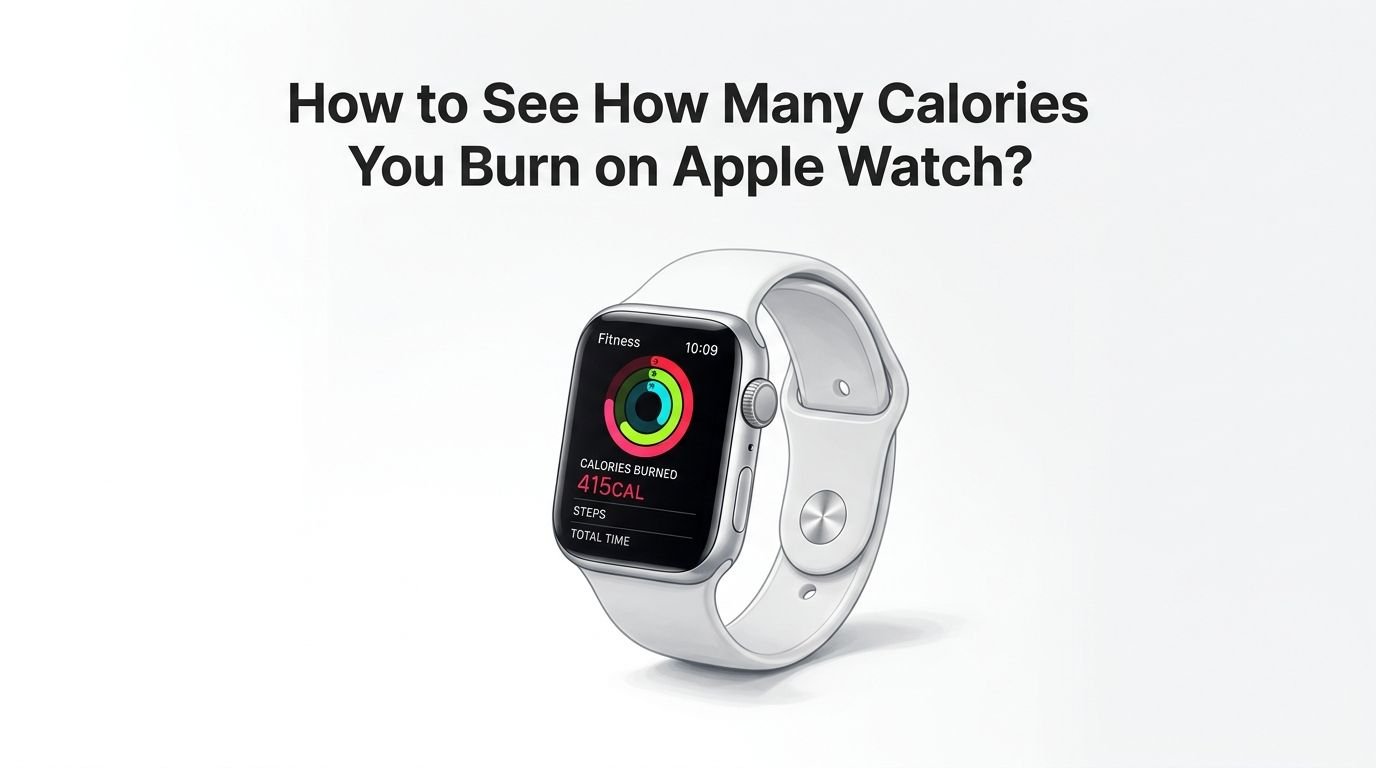
The red Move ring on your Apple Watch only reflects active calories. This often confuses users who expect to see their full daily burn at a glance. To see the complete number, you need to check either the Activity detail view or the Fitness app on your iPhone.
How to Check Active Calories Burned on Your Apple Watch
Finding your active calories on the watch itself takes only a few taps. Open the Activity app on your Apple Watch. This is the app with the three colored rings.
Once the app is open, use the Digital Crown to scroll down. Your active calorie count appears directly below the red Move ring. This number updates in real time throughout the day as you move.
You can also add the Activity complication to your watch face. This lets you see your active calorie progress without opening any app. Simply press and hold your watch face, tap Edit, and select the Activity complication for one of the available slots.
Pros: Quick and easy, updates in real time, available directly on your wrist.
Cons: Only shows active calories, not your total burn for the day.
How to See Total Calories Burned Using the iPhone Fitness App
Your iPhone provides the most detailed calorie data. Open the Fitness app on your iPhone. Tap the Activity rings displayed at the top of the screen.
Scroll down just below the Move data section. In the bottom left area, you will find your total calories burned for the day. This number combines your active and resting calories into one figure.
To view data from previous days, tap the calendar icon in the top right corner of the screen. Select any date to see that day’s total calorie burn. You can subtract the active calorie number from the total to calculate your resting calorie burn for that day.
Pros: Shows complete calorie data including resting burn, easy to view historical data.
Cons: Requires your iPhone, not viewable on the watch alone.
How to View Calories Burned During a Specific Workout
Your Apple Watch records calorie data for every workout you log. After completing a workout, your watch displays a summary screen that includes active calories, total calories, heart rate data, and duration.
If you missed that summary, you can find it later. Open the Fitness app on your iPhone and scroll down to the Workouts section. Tap any workout to see its full breakdown. The detail screen shows both active calories and total calories for that specific session.
You can also check past workouts through the Health app on your iPhone. Go to Browse, tap Activity, and then select Workouts. Every recorded session appears in a list with full calorie details.
Pros: Gives precise calorie data per workout, includes heart rate context.
Cons: You must start a workout session for the data to be recorded separately from general activity.
How to Use the Health App for Detailed Calorie Data
The Health app on your iPhone stores a deep archive of all your calorie data. Open the Health app and tap the Browse tab at the bottom of the screen. Select Activity from the list of categories.
Inside the Activity section, you will find several data points. Tap Active Energy to see your active calorie data organized by day, week, month, or year. Tap Resting Energy to see how many calories your body burns at rest.
Each data point includes a graph that shows trends over time. This is helpful for spotting patterns in your calorie burn. You might notice that your resting calorie burn changes as your weight or fitness level shifts.
Pros: Most detailed view available, shows long term trends, separates active and resting data clearly.
Cons: The interface can feel dense with information, requires some exploration to find specific data.
How to Update Your Personal Information for Better Accuracy
Your Apple Watch calculates calorie burn using your height, weight, age, and gender. If any of this information is wrong or outdated, your calorie readings will be off. This is one of the most common reasons for inaccurate data.
To update your details, open the Health app on your iPhone. Tap your profile icon in the top right corner. Select Health Details and then tap Edit. Update your weight, height, date of birth, and biological sex as needed.
Make it a habit to update your weight regularly, especially if you are actively losing or gaining weight. Even a change of five to ten pounds can shift your calorie estimates by a meaningful amount each day.
How to Calibrate Your Apple Watch for Accurate Calorie Tracking
Calibration teaches your Apple Watch how you move. This directly improves the accuracy of your calorie, distance, and pace measurements. Apple recommends a simple process that takes about 20 minutes.
Go to a flat, open outdoor area with good GPS reception. Open the Workout app on your Apple Watch and select Outdoor Walk or Outdoor Run. Walk or run at your normal pace for at least 20 minutes. Your watch uses GPS data during this session to learn your natural stride length.
Before you calibrate, check a few settings on your iPhone. Go to Settings, then Privacy & Security, then Location Services. Make sure Location Services is turned on. Scroll down and confirm that Apple Watch Workout is set to While Using.
Pros: Significantly improves accuracy for walking and running calorie estimates, free and simple to do.
Cons: Requires outdoor activity with GPS, does not improve accuracy for non walking activities like cycling or weight training.
How to Reset Calibration Data and Start Fresh
Sometimes your Apple Watch calibration data becomes unreliable. This can happen if you shared your watch with someone else, changed your walking patterns after an injury, or experienced software glitches. Resetting your calibration data lets you start clean.
On your iPhone, open the Watch app. Tap My Watch, then go to Privacy. Select Reset Fitness Calibration Data. This clears all stored motion data that your watch uses to estimate calories.
After resetting, you should calibrate again by performing the 20 minute outdoor walk or run described in the previous section. Your watch will rebuild its understanding of your movement patterns from scratch, which often fixes persistent inaccuracy.
Using Third Party Apps to Track Calories Burned
Several apps work with Apple Health to give you a more complete picture of your calorie data. MyFitnessPal syncs your Apple Watch calorie burn data with your food diary. This makes it easy to see whether you are in a calorie surplus or deficit each day.
Lose It! is another popular option that pulls calorie burn data from your Apple Watch and adjusts your daily calorie budget automatically. Cronometer is known for its detailed nutrient tracking and also syncs with Apple Health for calorie burn data.
These apps read data from the Apple Health database on your iPhone. To enable syncing, open the third party app and look for a Health or Apple Watch integration option in its settings.
Pros: Combine burn data with food tracking, automatic calorie budget adjustments, additional insights and reports.
Cons: Many advanced features require paid subscriptions, data syncing can occasionally lag.
Fixing Common Issues With Calorie Tracking on Apple Watch
If your Apple Watch stops tracking calories or shows incorrect numbers, a few quick fixes usually solve the problem. Start by restarting both your Apple Watch and iPhone. Press and hold the side button on each device to power them down, then turn them back on.
Next, check that Fitness Tracking is enabled. On your iPhone, go to Settings, then Privacy & Security, then Motion & Fitness. Make sure Fitness Tracking and Health are both toggled on.
If the issue continues, try unpairing and re pairing your Apple Watch. Open the Watch app on your iPhone, tap All Watches at the top left, select your watch, and choose to unpair it. Then pair it again. This process creates a backup and often resolves stubborn syncing problems.
Tips to Get the Most Accurate Calorie Burn Readings
Small adjustments can make a noticeable difference in your calorie data quality. Wear your Apple Watch snugly on your wrist during workouts. A loose fit causes the heart rate sensor to lose contact, which reduces calorie accuracy.
Always start a workout session in the Workout app before exercising. Your Apple Watch samples heart rate more frequently during active workout sessions, which leads to more precise calorie calculations. Without an active session, the watch checks your heart rate less often.
Keep your watchOS updated to the latest version. Apple regularly improves its calorie estimation algorithms through software updates. Go to the Watch app on your iPhone, tap General, and then Software Update to check for new versions.
Finally, consider wearing your watch while you sleep. Your Apple Watch can use overnight heart rate data to refine its understanding of your resting metabolic rate, which improves resting calorie estimates over time.
Understanding the Accuracy Limits of Apple Watch Calorie Tracking
No wrist worn device delivers perfect calorie estimates. Research suggests that Apple Watch calorie counts can be accurate within about 18 to 40 percent of actual calories burned, depending on the activity and individual factors.
The watch performs best during steady state cardio activities like walking, running, and cycling. It is less accurate during strength training, high intensity intervals, and activities with lots of arm movement. This is because the heart rate sensor and accelerometer have a harder time interpreting these movements.
Your individual body composition also plays a role. Two people with the same height and weight can burn different amounts of calories during the same activity. The Apple Watch cannot measure factors like muscle mass percentage or metabolic efficiency, which affect true calorie burn. Use the numbers as a useful estimate rather than an exact measurement.
How to Use Calorie Data From Your Apple Watch for Weight Management
Your calorie burn data becomes most useful when paired with food tracking. To lose weight, you generally need to burn more calories than you consume. Your Apple Watch provides the burn side of this equation.
Check your total calorie burn in the Fitness app at the end of each day. Compare this number against your calorie intake using a food tracking app. A deficit of about 500 calories per day typically leads to about one pound of weight loss per week.
Remember to use total calories, not just active calories, for this calculation. Your resting calorie burn represents a large portion of your daily energy use. Ignoring it would give you an incomplete picture and could lead to eating too little, which is both unhealthy and unsustainable.
Track your data over weeks rather than single days. Daily calorie numbers fluctuate based on water intake, sensor accuracy, and activity variation. Weekly averages give you a much more reliable view of your true energy balance.
Frequently Asked Questions
Does Apple Watch track calories burned while sleeping?
Yes, your Apple Watch tracks resting calories throughout the entire day and night. These are part of your total calorie count. However, the watch does not display a separate “sleep calories” number. The resting energy tracked overnight contributes to your total daily calorie figure shown in the Fitness and Health apps on your iPhone.
Why does my Apple Watch show different calorie numbers than the treadmill?
Treadmills and Apple Watch use different methods to estimate calorie burn. Treadmills typically rely on speed and incline with a generic formula. Your Apple Watch uses heart rate, movement data, and your personal information. Neither is perfectly accurate, but the Apple Watch generally provides a more personalized estimate because it factors in your specific body data.
Can I see calories burned per hour on Apple Watch?
The Apple Watch does not show an hourly calorie breakdown by default. However, the Health app on your iPhone can display this data. Go to Browse, then Activity, then Active Energy. Select the daily view, and you will see a bar graph that breaks down your calorie burn by hour.
How often should I update my weight on Apple Watch?
If you are actively gaining or losing weight, update your weight in the Health app at least once every two weeks. Even small changes in weight affect the calorie burn estimates your watch produces. Keeping this data current ensures your daily and workout calorie readings remain as accurate as possible.
Does Apple Watch count calories for strength training?
Yes, but with limitations. You can select Strength Training or Functional Strength Training as a workout type in the Workout app. The watch will track calories using your heart rate and movement data. However, calorie estimates for strength training are generally less accurate than for cardio activities because weight lifting produces less consistent heart rate patterns.
Is the Move ring the same as total calories burned?
No. The Move ring only tracks active calories, which are the calories you burn through physical movement and exercise. It does not include resting calories. Your total calorie burn for the day is always higher than what the Move ring shows. To see total calories, check the Fitness app on your iPhone.

Hi, I’m Elowen Porter, the creator of GreenLight.blog.
I share honest reviews and insights on supplements and Amazon health products to help you make smarter wellness choices.
With a passion for natural living and evidence-based products, I dig deep to find what truly works.
My goal is to simplify your supplement search with real results and trusted recommendations.
Let’s make healthy living a little easier—one product at a time.